iOS and iPadOS 14 and later accept encrypted DNS through a configuration
profile (a .mobileconfig file). Once installed it applies to every app on
Wi-Fi and mobile data.
Sign in to the dashboard (in Safari on the iPhone or iPad itself, or on
a computer) and open the profile’s Setup page.
Under Encrypted DNS, fill in Name a device (optional), for
example Kitchen iPad. It is saved the way the resolver records it
(kitchen-ipad) and is how the device shows in Logs and Analytics. You
can leave it empty.
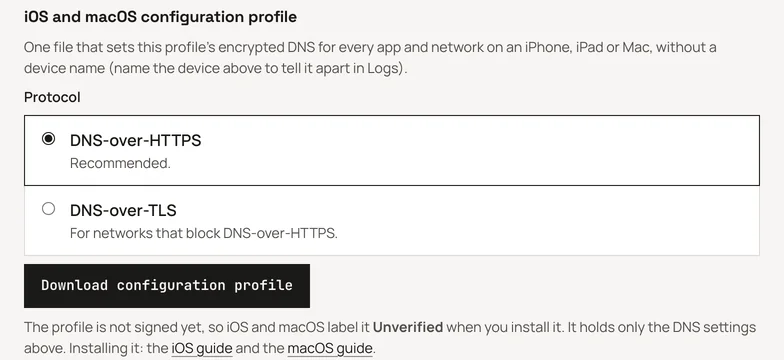
In iOS and macOS configuration profile, choose the protocol:
DNS-over-HTTPS (recommended) or DNS-over-TLS (for networks that
block DNS-over-HTTPS).
Click Download configuration profile. The file is named
opdns-<profile-id>-<device>-doh.mobileconfig (or …-dot…).
The file holds one thing: a DNS setting with your profile’s address (and
the device name) filled in, applied on every network, Wi-Fi and mobile
data. It is not signed yet (signing is planned), so iOS labels it
Unverified when you install it; that is expected. Downloading again
with the same device name gives a profile that replaces the installed one
rather than adding a second, whichever protocol you pick.
If you downloaded the file on the iPhone or iPad, iOS asks whether to
allow the download: tap Allow. If you downloaded it on a computer,
AirDrop it to the device, or email it to yourself and open the
attachment in Mail. iOS says Profile Downloaded.
Open Settings. Tap Profile Downloaded near the top (or
Settings → General → VPN & Device Management, then the profile
named opdns followed by your profile’s name in brackets).
Tap Install, enter the passcode, and confirm.
Screenshot to comeiOS Install Profile screen for the opdns profile, marked Unverified, with the Install button.iPhone, iOS 18
Open Settings → General → VPN & Device Management → DNS and make sure
opdns DNS over HTTPS (or opdns DNS over TLS) is selected.
A VPN app that sets its own DNS takes precedence while it is connected.
iCloud Private Relay can resolve Safari’s names through Apple’s relay.
If Safari’s queries are missing from the log while other apps’ are
there, that is why.
Downloading needs a dashboard sign-in. Through the API, the same file is
GET /v1/setup/apple?profile=<profile-id>&device=<device>&protocol=doh
with a token that has profiles:read.
The downloaded file is the supported path. If you cannot use it (no
dashboard access on the device you are configuring, or you manage devices
with your own tooling), this template is equivalent to a DNS-over-HTTPS
download. Copy it into a text editor and replace the placeholders:
<profile-id> and <device> (use hyphens, not spaces, in the device name);
the two UUID-… values with two different UUIDs (run uuidgen on a Mac
or Linux, or any online UUID generator).
opdns.mobileconfig
<?xml version="1.0" encoding="UTF-8"?>
<!DOCTYPE plist PUBLIC "-//Apple//DTD PLIST 1.0//EN" "http://www.apple.com/DTDs/PropertyList-1.0.dtd">